
Introduction
Struggling because your phone won’t receive picture messages? You’re not alone. Picture messages, or MMS (Multimedia Messaging Service), are a crucial way of sharing media, and when they fail to send or receive, it can be both frustrating and perplexing. Fortunately, there are common causes and proven solutions. Let’s dive into the reasons and fixes.
Common Reasons for Picture Message Failures
Several elements might interfere with your phone’s ability to receive picture messages. These could be network-related, due to incorrect settings, or outdated software. Let’s explore each of these.
Network Connectivity Problems
Your phone’s ability to receive picture messages primarily depends on a stable network connection. Fluctuating signal strength, intermittent service, or current network outages can easily disrupt this function.
Incorrect APN Settings
The Access Point Name (APN) settings on your phone dictate how it connects to your carrier’s network for data. Incorrect APN configurations may block MMS functionalities, preventing you from receiving picture messages.
Software or OS Updates
Sometimes, an obsolete operating system or application on your device can lead to MMS issues. Ensuring your device has the latest updates can resolve compatibility issues and enhance performance.
Understanding these common culprits sets a foundation for effective troubleshooting.
Network-Related Solutions
Tackling network issues is a recommended starting point in resolving MMS problems. Here are methods to ensure a reliable connection:
Checking Signal Strength and Data Connection
- Check Signal: Start by verifying the signal bars on your device to confirm adequate network coverage.
- Toggle Airplane Mode: This simple step of turning Airplane Mode on and then off can reset your connection and resolve minor glitches.
- Wi-Fi Utilization: Switching to a Wi-Fi network can be an excellent solution if mobile data is currently inadequate for downloading messages.
Resetting Network Settings
A network settings reset can rectify any erroneous configurations or past manual changes that hinder connectivity. While this action won’t delete personal data, it will erase any saved Wi-Fi passwords and network information.
Contacting Your Service Provider
Persistent network issues might require professional intervention. Contacting your service provider can offer insights into account restrictions, regional outages, and advanced troubleshooting steps.
Once your network is confirmed stable, it’s time to inspect and modify phone settings to restore MMS functionality.
Adjusting Phone Settings for MMS
Correct configuration of your phone settings is essential for proper MMS operation. Follow these steps to ensure they’re set correctly:
How to Correct APN Settings on Android and iPhone
Proper APN settings are crucial for connectivity:
- For Android:
- Navigate to Settings > Network & Internet > Mobile Network.
- Tap on Advanced > Access Point Names.
-
Verify and input the carrier’s APN settings accurately.
-
For iPhone:
- Navigate to Settings > Cellular > Cellular Data Options.
- Tap on Cellular Network and update the APN settings as needed.
Enabling MMS Messaging
Check that MMS messaging is enabled on your device:
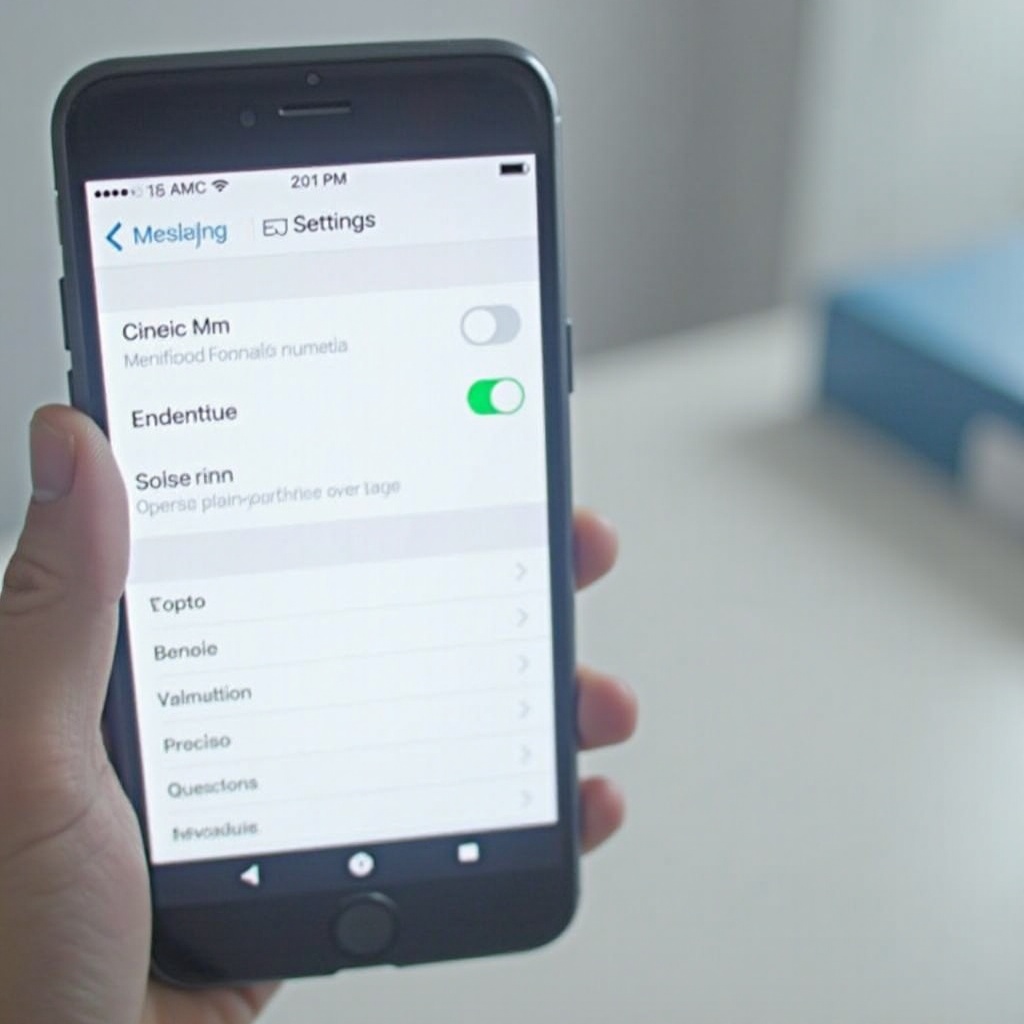
- Android: Go to Settings > Apps > Messages > Advanced settings to ensure MMS is enabled.
- iPhone: Navigate to Settings > Messages and turn on MMS Messaging.
Managing Data Restrictions and Roaming
Sometimes, restrictive data usage settings might impede MMS functions:
- Disable any active Data Saver or Low Data Mode settings.
- Check that data roaming is enabled if you’re outside your domestic network.
With phone settings optimized, let’s address specific device-related challenges that might be responsible for the MMS issues.
Device-Specific Troubleshooting
Challenges may also stem from unique device configurations or permissions. Here’s how to manage these issues:
Android-Specific Fixes
- Clear Cache: Navigate to Settings > Storage > Cached Data and clear the cache to remove old or corrupted files.
- App Permissions: Ensure the messaging app has appropriate permissions via Settings > Apps > Messages > Permissions.
iPhone-Specific Fixes
- iMessage Restart: Go to Settings > Messages and toggle iMessage off and back on to refresh message settings.
- Reset All Settings: If errors persist, consider resetting all settings under Settings > General > Reset.
Ensuring Messaging App Permissions
App permissions control the functionalities your apps can utilize:
- Check permissions in Settings > Apps > [Your messaging app] > Permissions.
- Enable permissions for SMS, MMS, and media file access.
Once device-specific settings and permissions are confirmed, if problems continue, advanced solutions might be necessary.
Advanced Troubleshooting Methods
When simpler fixes don’t resolve the MMS issues, consider moving to more advanced strategies:
Factory Reset Considerations
A factory reset is a last-resort solution but can effectively eliminate persistent software glitches. Always back up your device data first, as this process deletes all information and returns the device to its original state.
Re-flashing OS or Firmware
If complex problems persist even after a factory reset, re-flashing the operating system or firmware can provide a clean slate. It is advisable to seek professional assistance for this procedure to avoid voiding warranties or causing further issues.
Conclusion
Resolving picture messaging issues is often about applying the right solution to the correct problem. Simple tweaks in network settings, phone configurations, or permissions usually suffice. However, don’t hesitate to seek help from professionals if needed. Restoring your phone’s ability to receive MMS will reinstate this essential communication pathway.
Frequently Asked Questions
Why can’t I send pictures in text messages?
Sending failures often occur due to issues like poor network connection, incorrect settings, or limited mobile data allowances. Checking and correcting these can help resolve the problem.
How do I enable MMS messaging on my phone?
Go to your phone’s messaging settings and ensure that the MMS messaging toggle is turned on. For Android, it is in Settings > Apps > Messages, and for iPhone, it is in Settings > Messages.
What should I do if my phone can send but not receive picture messages?
Verify there are no account restrictions, ensure proper APN settings, and consider resetting network settings. If issues persist, contact your service provider for additional support.